Image Optimization for Core Web Vitals: Formats, Sizing, and Lazy Loading
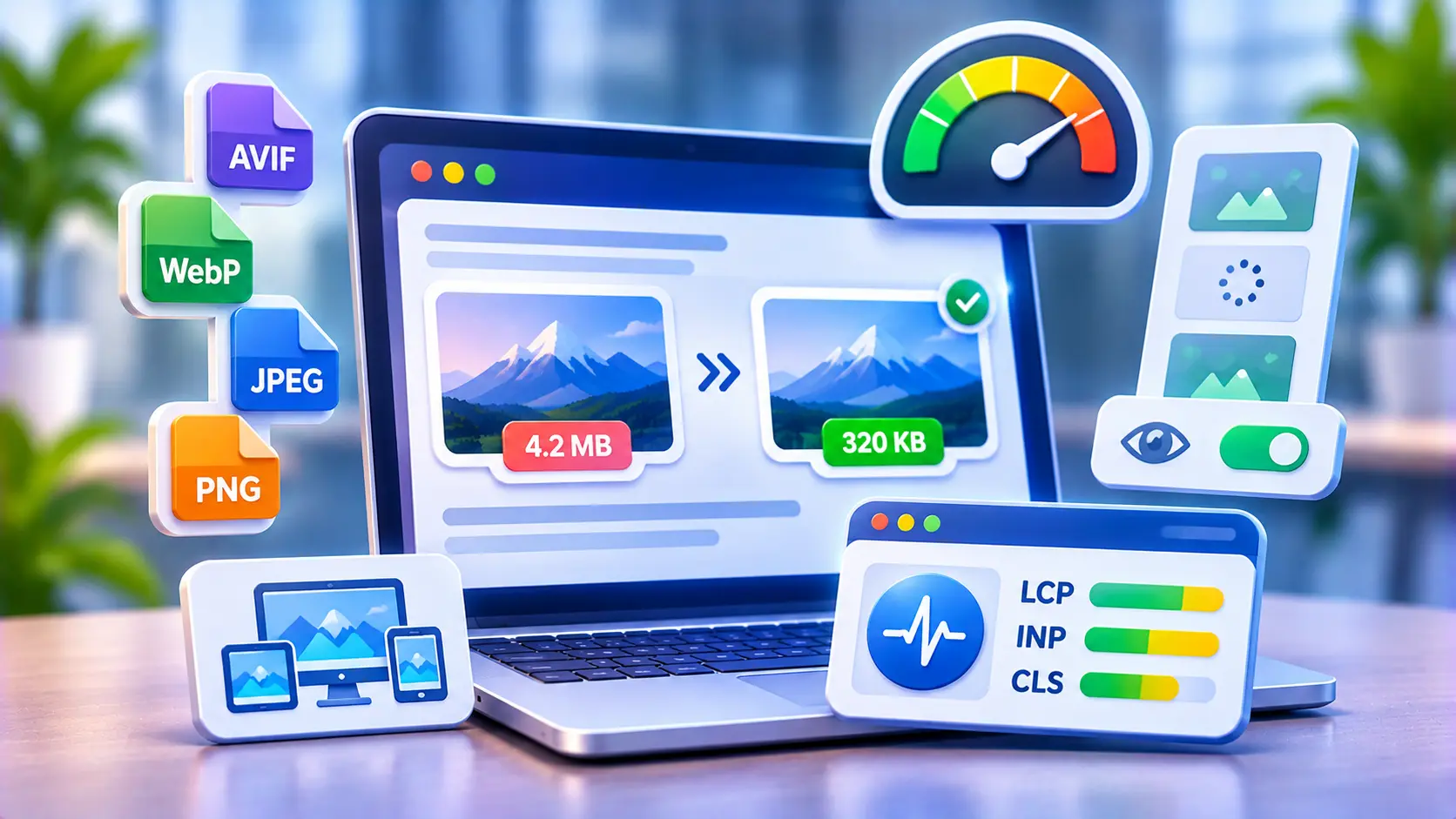

Image optimization for Core Web Vitals comes down to four decisions: choose an efficient format, send the right size, give the main image top priority, and lazy-load everything else. It matters because images are usually the biggest thing your page has to load. According to the 2025 Web Almanac, an image is the Largest Contentful Paint element on 76% of mobile pages and 85% of desktop pages, so your images often decide whether you pass or fail. This guide covers each decision in order, with code you can copy and a way to test the result.
In this article16 sections
Why do images affect Core Web Vitals?#
Images affect Core Web Vitals mainly through two metrics. Largest Contentful Paint (LCP) measures how long the biggest visible element takes to appear, and a heavy or late-loading hero image delays it. Cumulative Layout Shift (CLS) measures unexpected movement, which happens when images load without reserved space.
Google’s “good” thresholds, measured at the 75th percentile of real visits, are 2.5 seconds or less for LCP and 0.1 or less for CLS. Here is how common image problems map to fixes:
| Problem | Metric hurt | Fix |
| Oversized or old-format hero image | LCP | Modern format, correct dimensions |
| Hero image lazy-loaded | LCP | Remove lazy loading, add priority |
| Image discovered late by the browser | LCP | Preload or fetch priority |
| No width and height attributes | CLS | Set both on every image |
| Phone downloads a desktop-sized file | LCP | srcset and sizes |
Which image format is best: WebP, AVIF or JPEG?#
Use AVIF or WebP for most photos, with JPEG as a fallback, and use SVG for logos and icons. WebP is the safe default because every current major browser supports it. AVIF often compresses further but takes longer to encode and needs a fallback. The savings differ by image, so test your own files.
| Format | Best for | Watch out for |
| JPEG | Universal fallback for photos | Larger files than modern formats |
| PNG | Images needing lossless transparency | Heavy for photos |
| WebP format | Photos and graphics, wide support | Slightly less efficient than AVIF |
| AVIF | Highest compression for photos | Slow encoding, quality tuning |
| SVG | Logos, icons, simple illustrations | Not for photographs |
Many sites have not moved yet. The Web Almanac 2024 reported JPEG at about 32% of images, WebP at 12% and AVIF near 1%, based on a secondary summary, so there is usually easy headroom. If your CMS or CDN converts formats automatically, let it. If you serve formats yourself, use the picture element:
<picture>
<source srcset=”hero.avif” type=”image/avif”>
<source srcset=”hero.webp” type=”image/webp”>
<img src=”hero.jpg” alt=”Descriptive alt text” width=”1200″ height=”630″>
</picture>
WordPress users can rely on core support for uploading WebP and AVIF files in recent versions, though uploading a modern format does not convert your older library. A plugin or image CDN handles that.
How do you size images with srcset and sizes?#
Send each device an image close to the size it will display, using srcset to list the available files and sizes to tell the browser how wide the image will be. Without sizes, the browser assumes the image fills the viewport, which can make it download a larger file than needed.
<img
src=”photo-800.webp”
srcset=”photo-480.webp 480w, photo-800.webp 800w, photo-1200.webp 1200w”
sizes=”(max-width: 600px) 100vw, 800px”
width=”800″ height=”533″
alt=”Descriptive alt text”>
A practical rule: generate widths that match your layout breakpoints, and cap the largest file at roughly twice the biggest displayed width to cover high-density screens. Do not upload a 4,000-pixel photo for a 600-pixel slot.
Always set width and height. They let the browser reserve space before the file arrives, which prevents layout shift. If your CSS makes the image fluid, add height: auto so the aspect ratio holds.
How do you set LCP image priority?#
Make sure the LCP image is never lazy-loaded, add fetchpriority=”high” to it, and preload it only if the browser would otherwise discover it late. This is the highest-impact fix on many sites, and it is often a one-attribute change.
<img src=”hero.webp” width=”1200″ height=”630″
fetchpriority=”high” alt=”Descriptive alt text”>
This mistake is common. CoreDash, citing the 2025 Web Almanac, reports that roughly 10% of mobile pages natively lazy-load their LCP image and another 6% do it with JavaScript. In its own dataset, pages without a lazy-loaded LCP image scored “good” on LCP 79% of the time, against 52% for pages that lazy-load it. Treat that as one consultancy’s sample, not a universal law, but the direction is consistent with Google’s guidance.
Fetch priority is also becoming mainstream. Adoption grew from 0.03% of mobile sites in 2022 to 17.3% in 2025, largely because WordPress added it to core. Use fetchpriority=”high” on one image per page, usually the hero. Marking many images as high priority cancels the benefit.
Two cases need extra care. A hero set as a CSS background image is not visible to the browser’s preload scanner, so use a real img element or add a preload. And a carousel’s first slide is usually the LCP image, so keep it eager.
How do you implement lazy loading correctly?#
Add loading=”lazy” to images that start below the fold, and leave it off anything visible when the page first loads. Native lazy loading is supported by current browsers and needs no JavaScript library.
- Identify your LCP image in PageSpeed Insights or Chrome DevTools.
- Remove lazy loading from it and from any other image in the first screen.
- Add loading=”lazy” to the rest of the images, including embedded iframes.
- Keep width and height on every lazy image, because without them they cause layout shift when they load.
- Retest to confirm the Lighthouse warning about a lazily loaded LCP image is gone.
Check how your platform behaves. CoreDash notes that WordPress 6.3 and later no longer lazy-load the first few images and add fetch priority to the likely LCP image automatically, but themes and plugins can override this. Frameworks have their own switches. For example, Next.js documentation says the priority option is for images that are the LCP element.
If your site uses a JavaScript lazy-load library from years ago, replace it. Native lazy loading is simpler and more reliable.
Which image compression tools should you use?#
Choose a tool that fits your workflow, then compress to the lowest quality that still looks right. Lossy compression gives the largest savings, lossless keeps every pixel, and most photos tolerate moderate lossy settings. Compare before and after at actual display size.
| Need | Examples |
| Manual, one-off comparison | Squoosh, TinyPNG |
| WordPress automation | ShortPixel, Imagify, Smush, EWWW |
| Build pipelines | sharp, ImageMagick |
| Automatic resizing and format delivery | An image CDN such as Cloudflare Images or Cloudinary |
Quality settings around the mid-70s to low-80s are a common starting range for photos, but treat that as a place to begin testing, not a rule. Strip unnecessary metadata, and compress before upload so your library does not fill with oversized originals.
Technical fixes are easier when you know what else is slowing the page. A technical SEO audit from Search Savvy can show whether images are the main bottleneck or one of several, and the SEO glossary explains related terms such as Core Web Vitals and lazy loading.
How do you test image changes?#
Test with both lab and field data. Run PageSpeed Insights or Lighthouse to see your LCP element and its load timing, then check the Core Web Vitals report in Google Search Console, which reflects real users over time.
- Open PageSpeed Insights and note the LCP element and whether it is an image.
- In Chrome DevTools, open the Network tab and confirm the LCP image starts downloading early.
- Check the Lighthouse opportunities for oversized, unoptimized or offscreen images.
- Compare field data after a few weeks, since real-user numbers update gradually.
If you manage a site where templates, themes or plugins keep reintroducing problems, building image handling into the template is cheaper than fixing pages one by one. Search Savvy’s website design and development services cover performance-minded builds. Do not forget accessibility and search: descriptive alt text and sensible file names are part of on-page SEO, and they cost nothing in speed.
Common mistakes to avoid#
- Lazy-loading the hero image. It delays the metric Google is measuring.
- Skipping width and height. The page jumps as images load.
- Uploading originals. A 5 MB camera file in a small slot wastes bandwidth.
- Overusing high priority. Only the LCP image should get it.
- Converting to AVIF without a fallback. Keep WebP or JPEG available.
- Using a CSS background for the hero. The browser finds it late.
- Optimizing images but ignoring the server. A slow server response limits any image fix.
Frequently asked questions#
Does image optimization improve SEO?#
Yes, indirectly. Faster, more stable pages improve Core Web Vitals, which Google’s ranking systems use, and they give visitors a better experience. Optimized images also support image search through alt text and file names, but content relevance still matters more.
Should I lazy-load all images?#
No. Lazy-load images below the fold, and never lazy-load the LCP image or other first-screen images. Lazy-loading everything delays the content visitors see first.
Is WebP better than JPEG?#
Usually, for web delivery. WebP typically produces smaller files at similar visual quality and is supported by all current major browsers. Keep a JPEG fallback if you must support very old browsers.
What is the best image size for a website?#
There is no single size. Match the file to the largest width it displays, with extra for high-density screens, and offer smaller versions through srcset. Aim for the lowest file size that still looks sharp.
What does fetchpriority high do?#
It tells the browser to download that image earlier than it otherwise would. Use it on the main LCP image, and only on one image per page.
How do I find my LCP image?#
Run PageSpeed Insights or Lighthouse and look for the Largest Contentful Paint element in the diagnostics. Chrome DevTools’ Performance panel shows the same element in the timeline.
Bottom line#
Image optimization for Core Web Vitals is mostly about doing a few things consistently: modern formats with fallbacks, correctly sized files with srcset, explicit dimensions, a prioritized LCP image, and lazy loading only below the fold. Start with your highest-traffic page. Identify its LCP image, remove any lazy loading, add fetch priority, and retest. If you would like help finding the biggest wins across a whole site, Search Savvy’s team can walk through where to begin.