How to Update Google Business Profile Hours for Black Friday and Cyber Monday
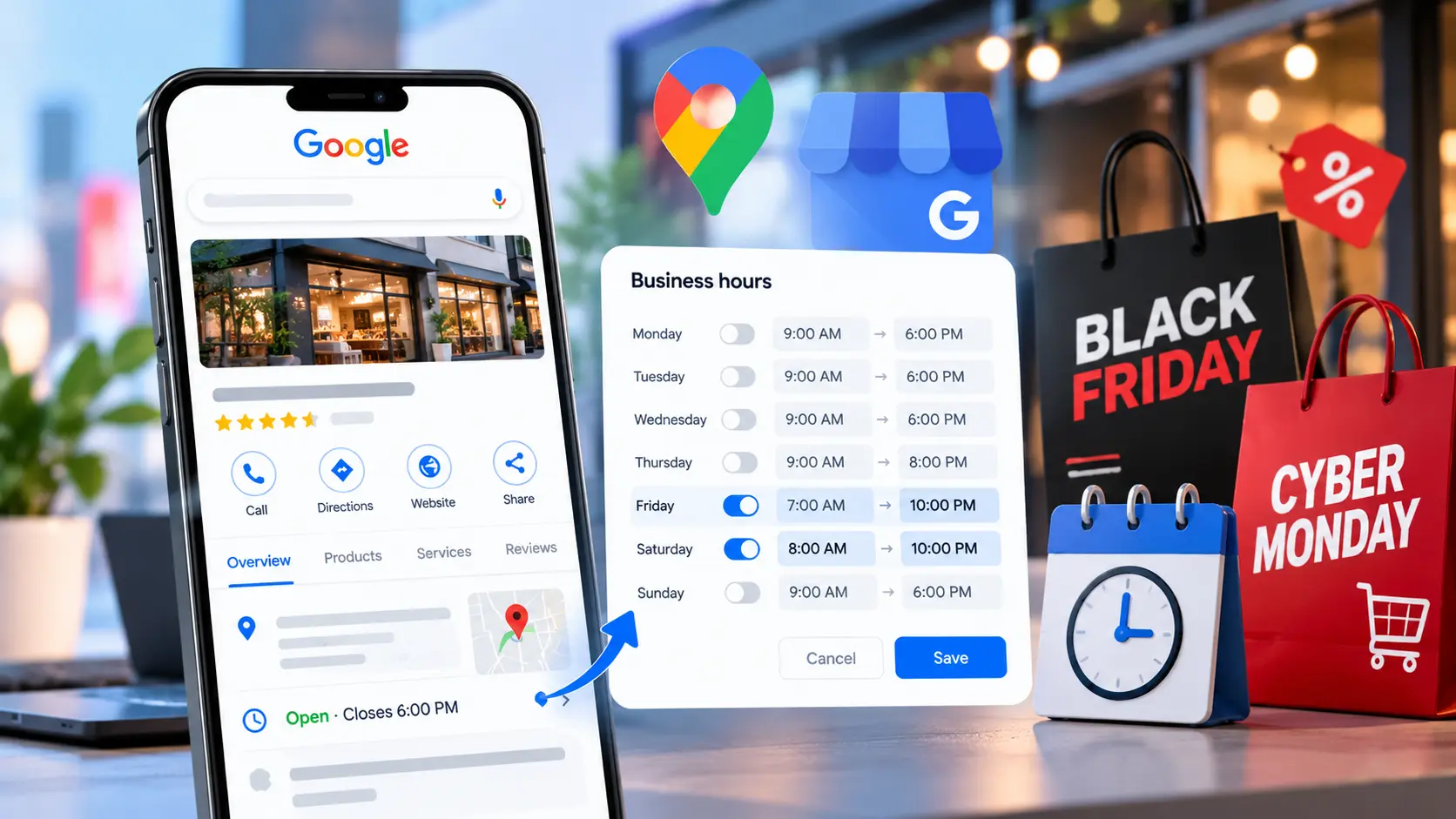

To update GBP Black Friday hours, open your Business Profile, choose Edit profile, then Hours, and add a special-hours entry for each date that differs from your regular schedule. For 2026, that means Thursday, November 26 (Thanksgiving, for U.S. stores), Friday, November 27 and Monday, November 30, plus any extended or early-opening days. Confirm hours even on dates when you are open as normal, then check the public profile to see what customers see. This guide covers the exact steps, the 2026 dates, multi-location shortcuts and the mistakes that cause hours mismatches.
In this article19 sections
What Are GBP Black Friday Hours?#
GBP Black Friday hours are the special opening and closing times you set on your Google Business Profile for the Black Friday and Cyber Monday period. They use Google’s special hours feature, which overrides your regular hours for specific dates without changing your weekly schedule. Google says you can set special hours if your business temporarily adjusts its hours or stays closed for up to 6 days in a row.
Which Dates Should You Update in 2026?#
Black Friday falls on Friday, November 27, 2026, and Cyber Monday on Monday, November 30, with Thanksgiving on November 26 and Small Business Saturday on November 28. Many retailers also start deals earlier, so review every date where your hours differ.
| Date (2026) | Occasion | Check |
| Thu, Nov 26 | Thanksgiving (U.S.) | Closed, or reduced hours for evening openings |
| Fri, Nov 27 | Black Friday | Early opening, extended close, or normal hours |
| Sat, Nov 28 | Small Business Saturday | Often a busy trading day |
| Sun, Nov 29 | Cyber weekend | Sunday hours often differ from the rest of the week |
| Mon, Nov 30 | Cyber Monday | Mostly online, but confirm store, pickup and support hours |
Black Friday and Cyber Monday are retail events, not public holidays. Google’s holiday suggestions are based on official holiday lists, so do not assume it will prompt you for these dates. Add them yourself with a custom date. If you serve customers in other countries, remember that Thanksgiving applies to the U.S. only, while the sales events are marketed worldwide.
How Do You Set Special Hours on Google Business Profile?#
You set special hours from Edit profile, in the Hours section, by choosing a date and entering your times. These are Google’s own steps:
- Go to your Business Profile and select Edit profile, then Hours.
- Next to “Special hours,” select Edit (the pencil icon).
- Choose a date. Select Review to confirm a date Google suggests, or Add a date to enter a custom one.
- If you are open, uncheck “Closed” and enter opening and closing times. If you are closed, leave “Closed” checked.
- To add a split schedule on one date, select More, then Add hours.
- Select Save.
One condition catches people out: for special hours to show, your regular business hours must be set to “Open with main hours.” If a profile is marked temporarily closed, or hours are set differently, your special hours will not appear.
How Do You Handle Hours That Cross Midnight?#
A single set of special hours cannot exceed 24 hours. If you open at 7 PM on Thursday and stay open until 5 PM on Friday, enter two sets: one running to midnight on the first date and another starting at midnight on the second. Google also notes that special hours on the second date replace your regular hours for that day, so re-enter any later hours you still want to keep.
How Do You Update Many Locations at Once?#
Use the bulk upload spreadsheet. Google’s format is YYYY-MM-DD followed by the hours, with an “x” for an all-day closure. If you only add special hours to existing locations, include just the store code and special hours columns. Google warns that empty columns or headings without data can erase existing information, so test with one location first. Search Savvy’s guide to managing multi-location Google Business Profiles covers the wider workflow.
Special Hours vs More Hours vs Temporarily Closed#
Pick the right tool for the situation, because each one tells customers something different.
| Situation | Use | Why |
| Different hours on specific dates | Special hours | Overrides regular hours for those dates only |
| Delivery, pickup or senior hours that differ from store hours | More hours | Describes service-specific times |
| Closed for 7 or more days, or for an unknown period | Temporarily closed | Google recommends this beyond 6 days |
Why Does Hours Accuracy Matter for Customer Trust?#
Wrong hours cost you visits and credibility. BrightLocal’s Local Citations Trust Report found that incorrect opening hours damaged business trust for 51% of surveyed consumers, and 24% had arrived at a business at the wrong time because of wrong hours online. That research is a few years old and U.S.-based, so treat the percentages as directional.
Yext’s 2022 consumer survey adds a holiday angle: 73% of respondents said they would not give a business a second chance after arriving at a closed storefront, and 52% were not confident visiting a location whose Google profile showed a holiday-hours warning. Yext sells listings software, so read it as vendor research, but the pattern matches common sense. Shoppers cross town for doorbuster deals; a mismatch on that day is expensive.
What About Local Pack Accuracy?#
Accurate hours shape what searchers see in the local pack, including whether you appear open. Google does not publish hours as a ranking factor, so avoid promising ranking gains from this task. The reliable benefit is conversion: a listing that states clear, correct hours gives a searcher fewer reasons to pick the next result. For the broader picture, see Search Savvy’s local SEO checklist.
How Fast Do GBP Updates Show, and How Do You Keep Them Current?#
Google does not guarantee how quickly an edit appears, so do not plan around exact timing. Make the change early, then check the public Search and Maps listing. For “real-time” changes on the day itself, such as closing early because stock sold out or extending doors-open hours, edit that date’s special hours immediately and re-check.
Keep these in step:
- Website. Your site’s hours, footer and store pages should match the profile.
- Other listings. Apple Maps, Bing and social profiles need the same dates. Search Savvy’s explainer on NAP consistency shows why mismatches erode trust.
- Business Profile posts. Use a post for context, such as early-bird times or a pickup cutoff. Our piece on Google Business Profile posts and rankings explains what posts can and cannot do.
- Staff and phone scripts. Teams should quote the same hours the profile shows.
Common Mistakes to Avoid#
- Waiting until the week of Black Friday. Add dates at least two weeks ahead so you have time to verify.
- Skipping dates when hours are normal. Google recommends confirming holiday hours even when they match your regular schedule.
- Forgetting “Open with main hours.” Special hours will not display without it.
- Using Temporarily closed for a short break. Reserve it for 7+ days or unknown periods.
- Editing one location and forgetting the rest. Multi-site brands should audit every profile.
- Not reverting. Remove or let expire the special hours after Cyber Monday so December hours are correct.
A Simple Black Friday Hours Timeline#
| When | Task |
| By mid-November | Decide hours for Nov 26 to 30 with store managers; list early-opening or late-closing dates |
| By Nov 20 | Enter special hours; confirm Thanksgiving, Black Friday and Cyber Monday |
| Nov 23 | Check the public listing on Search and Maps, on desktop and mobile |
| Nov 27 to 30 | Fix any same-day changes immediately; post updates if needed |
| Dec 1 | Verify regular hours are showing again |
If your sale is part of a larger campaign, pair this with Search Savvy’s Black Friday SEO checklist. Stores in India that have just finished a Diwali campaign can reuse the process from the Google Business Profile checklist before Diwali 2026.
Frequently Asked Questions#
Do I need to add Black Friday hours if I’m open normal hours?#
Yes, it is a good idea. Google recommends confirming hours for holidays even when they match your regular schedule, because it makes clear to customers that the hours are accurate.
Can I set special hours for more than one day?#
Yes. Add each date separately. Google’s special hours cover temporary changes or closures of up to 6 days in a row; for 7 or more days, mark the business as temporarily closed.
Why aren’t my special hours showing on Google?#
Check that your main hours setting is “Open with main hours,” that you clicked Save, and that the edit has had time to process. If it still does not show, review the profile from a signed-out browser.
Should Cyber Monday hours be listed if I only sell online?#
If you have a physical location, support line or pickup counter, yes. If you operate fully online without a public location, there may be no hours to list.
How do I change Black Friday hours at the last minute?#
Edit the special hours for that date in Edit profile, then Hours, and save. Re-check the live listing, and mention the change on your website and social profiles.
Does updating hours improve my local pack ranking?#
Google does not say hours are a ranking factor. The benefit is accuracy and customer trust, which affects whether people choose and visit you.
What to Do Next#
Open your profile this week, add special hours for November 26 to 30, and check the public listing on your phone. If you run several locations or want a second review before the sales weekend, Search Savvy’s local SEO services can help with an audit of your profiles.