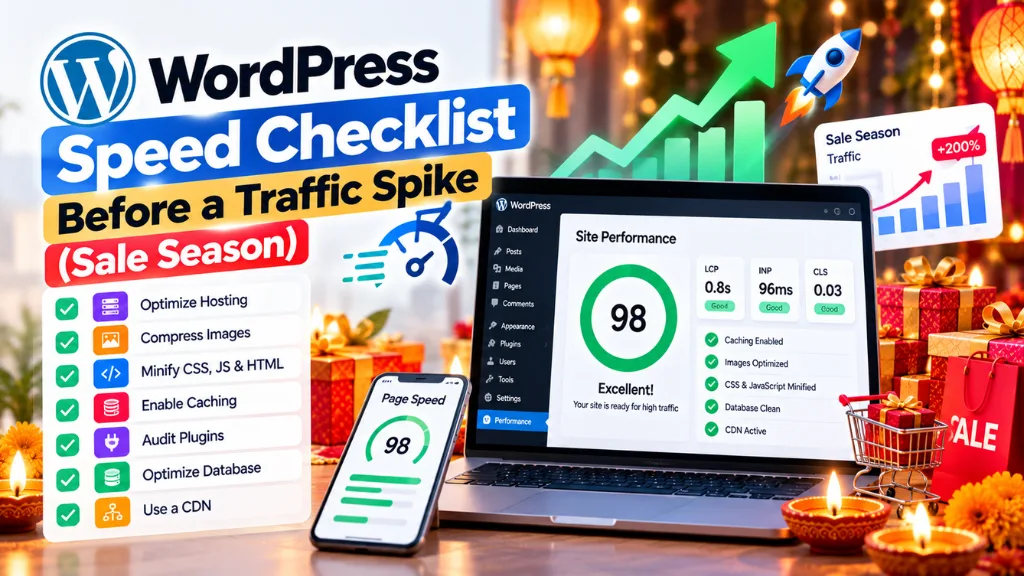
WordPress Speed Checklist Before a Traffic Spike (Sale Season)

WordPress powers roughly 64% of CMS-driven websites, according to the 2025 Web Almanac, which makes it the default choice for most Indian stores and blogs preparing for festive traffic. That same report found only about 43 to 45% of WordPress sites pass Core Web Vitals on mobile, well behind more controlled platforms. A sale-day traffic spike is exactly when that gap turns into lost revenue.
In this article18 sections
This checklist covers WordPress speed optimization in the order that matters before a spike: measure first, fix caching, add a CDN, compress images, choose hosting that can scale, then trim plugins and database bloat. The short version: page caching plus a CDN plus compressed, correctly sized images will fix most WordPress sites, and everything after that is refinement.
Why Sale Season Breaks Slow WordPress Sites#
A festive sale changes two things at once: far more concurrent visitors, and far more logged-in or cart-active sessions if you run WooCommerce. Regular page caching serves a saved copy of a page without running PHP, but it cannot help a shopping cart, checkout page or logged-in account view, which must be generated fresh for every visitor. That is exactly the traffic mix a Diwali sale produces, so a WordPress speed optimization plan for sale season has to cover both cached and dynamic pages.
Step 1: Measure Before You Change Anything#
Run your homepage, a category page and a product or checkout page through PageSpeed Insights and GTmetrix before making changes, so you have a baseline.
- PageSpeed Insights shows Core Web Vitals field data (from real Chrome users, when available) alongside a Lighthouse lab score.
- GTmetrix gives a letter grade combining a Performance score (70% weight) and a Structure score (30% weight), based on GTmetrix’s own documentation. A good GTmetrix score is a lab measurement from one test location, not the same as Google’s real-user Core Web Vitals, so treat it as a diagnostic tool rather than a ranking proxy.
Focus on Largest Contentful Paint (2.5 seconds or less), Interaction to Next Paint (200 milliseconds or less) and Cumulative Layout Shift (0.1 or less), which are Google’s thresholds for a good page. Search Savvy covers these thresholds in more depth in its guide to Core Web Vitals, but the short version is enough to prioritize this checklist: fix whichever metric is furthest from good first.
The WordPress Speed Checklist#
| # | Area | Fix before sale season |
| 1 | Baseline | Test key pages in PageSpeed Insights and GTmetrix |
| 2 | Caching | Enable page caching; add object caching for WooCommerce or membership sites |
| 3 | CDN | Serve static assets and, ideally, cached HTML from edge locations |
| 4 | Images | Compress, resize and use modern formats; never lazy-load the hero image |
| 5 | Hosting | Confirm your host can scale PHP workers and database connections |
| 6 | Plugins and database | Remove unused plugins; clean transients and post revisions |
| 7 | Load test | Simulate concurrent traffic before the sale begins |
Step 2: Set Up Caching Plugins Correctly#
Caching plugins solve most of a slow WordPress site’s problem, but only when configured for the right layer.
- Page caching stores complete rendered HTML so WordPress and PHP are skipped entirely for anonymous visitors. This is the single highest-impact fix for blogs, brochure sites and product pages viewed by logged-out shoppers.
- Object caching stores database query results so they persist between requests. WordPress ships with a non-persistent object cache built in, but it clears at the end of each request. A persistent object cache backed by Redis or Memcached keeps that data around, which matters for WooCommerce carts, logged-in sessions and personalized content that page caching cannot touch.
Popular options include WP Rocket, W3 Total Cache and Litespeed Cache (page caching), and Redis Object Cache (persistent object caching, listed on WordPress.org with over 30,000 active installs). Whichever plugin you use, confirm your host actually supports persistent object caching. Most shared hosting does not offer Redis or Memcached, so a VPS or managed WordPress host is usually required for this layer.
For a WooCommerce store, treat object caching as close to mandatory before a big sale, since every cart update and checkout step needs the database. Search Savvy’s website design and development glossary explains caching-related terms in plain language if you are briefing a non-technical team.
Step 3: Add a CDN for WordPress#
A CDN for WordPress serves static files, and sometimes cached pages, from servers geographically closer to each visitor, cutting the distance data has to travel. During a festive spike with visitors across many Indian cities, that matters more than usual.
What to check before the sale:
- Confirm images, CSS and JavaScript are served through the CDN, not just linked to it.
- If your CDN offers full-page caching at the edge (some do), make sure cache purging is wired to your WordPress cache plugin, so a price or stock update does not show stale data.
- Test that the CDN correctly serves modern image formats and compressed files.
A CDN does not fix slow PHP or database queries on dynamic pages; it reduces the load and latency for everything that can be served as a static or cached asset.
Step 4: Compress and Serve Images Correctly#
Product photos, banners and festive graphics are usually the heaviest assets on a WordPress page, so image compression for WordPress deserves its own pass before the sale.
- Compress every uploaded image. Plugins such as Imagify, ShortPixel and Smush handle this automatically on upload; run a bulk pass over your existing media library too.
- Serve modern formats such as WebP or AVIF where your theme and plugins support them.
- Resize to the display size. A 4000px product photo shown in a 600px grid wastes bandwidth even after compression.
- Never lazy-load the hero image. WordPress has lazy-loaded images by default since version 5.5, adding loading=”lazy” automatically, and refined the logic in version 5.9 to skip the first image or iframe on a page to avoid delaying it. Confirm your theme’s banner or hero image is not being lazy-loaded regardless, since that directly hurts LCP.
- Set width and height on every image so the browser can reserve space and avoid layout shift.
Step 5: Choose Hosting That Handles Traffic Spikes#
Hosting for traffic spikes needs headroom in three places that plans rarely advertise clearly:
- PHP workers. Each simultaneous uncached request needs a PHP worker. A plan with too few workers queues requests during a spike, which shows up as slow or timed-out pages even if the server “isn’t full.”
- Database connections. WooCommerce carts and checkouts hit the database on every step, so a plan with a low connection limit can bottleneck before CPU does.
- Autoscaling or burst capacity. Ask your host directly whether resources scale automatically during a traffic surge, or whether you need to manually upgrade before the sale and downgrade after.
If you are unsure whether your current plan can take the load, a technical SEO audit that includes a hosting review is worth doing well before 8 October, not during the sale.
Step 6: Clean Up Plugins and the Database#
Every active plugin adds PHP execution time, database queries, or both, even on a cached page for logged-in admin views and on every dynamic request.
- Deactivate and delete unused plugins. An inactive plugin still adds files to scan; a genuinely unused one should be removed.
- Audit third-party scripts such as chat widgets, review pop-ups and marketing pixels, and load only what the festive campaign needs.
- Clean expired transients and old post revisions, which accumulate in the database over time and slow queries.
- Update WordPress core, your theme and all plugins before the sale window, not during it, so any compatibility issue surfaces with time to fix it.
Step 7: Load Test Before the Sale, Not During It#
Simulate concurrent visitors hitting your homepage, a category page and checkout at the same time, using a load-testing tool, at least a week before your festive campaign starts. This is the only way to see how your caching, CDN and hosting choices behave together under real concurrency, rather than in a single-visitor GTmetrix test. Fix anything that fails under load while you still have time to change hosting plans or plugin configuration.
Common Mistakes to Avoid#
- Trusting a good GTmetrix score alone. It is a lab test from one location; confirm real Core Web Vitals in PageSpeed Insights too.
- Skipping object caching on a WooCommerce store. Page caching cannot help carts and checkout.
- Lazy-loading the hero banner. It delays the metric that measures how fast the page feels to load.
- Uploading full-resolution photos. Compress and resize before uploading, not after.
- Assuming shared hosting scales. Confirm PHP worker and database connection limits directly with your host.
- Testing performance for the first time during the sale. Load test with time to fix what breaks.
Frequently Asked Questions#
What Is a Good GTmetrix Score for a WordPress Site?#
There is no single universal target, but aim for a high Performance score and a Structure score in the A or B range, and check that Core Web Vitals in the report are also good. Because GTmetrix defaults to one test location and desktop by default, cross-check with PageSpeed Insights’ real-user data too.
Do I Need Object Caching If I Already Have a Caching Plugin?#
If your caching plugin only does page caching, yes, add object caching for a WooCommerce or membership site, since page caching cannot serve carts, checkout or logged-in views. A simple blog or brochure site usually gets most of its benefit from page caching alone.
Which CDN Works Best for WordPress?#
Most major CDNs integrate with WordPress through a plugin or your host’s built-in option. The right choice depends on whether you need full-page edge caching or only static-asset delivery, and whether your host already includes one. Confirm cache purging is connected to your WordPress cache plugin either way.
How Do I Compress Images Without Losing Quality?#
Use an image compression plugin such as Imagify, ShortPixel or Smush, set to a “high quality” or “balanced” compression level rather than maximum compression, and serve WebP or AVIF where supported. Resize images to their actual display dimensions before uploading.
Can Shared Hosting Handle a Diwali Sale Traffic Spike?#
Sometimes, for a small catalog with light traffic, but most shared hosting has limited PHP workers and database connections that struggle under concurrent checkout traffic. A VPS or managed WordPress host with confirmed burst capacity is safer for anything beyond a small sale.
How Early Should I Test My Site Before a Sale?#
At least one to two weeks before the campaign starts, so there is time to fix hosting, plugin or caching issues a load test reveals. Testing for the first time on launch day leaves no room to correct problems before traffic peaks.
The Bottom Line#
A fast WordPress site during sale season comes from getting the fundamentals right in order: measure, cache both static and dynamic pages, serve assets from a CDN, compress images properly, confirm your hosting can scale, and clean up what slows the database. This week, run your key pages through PageSpeed Insights and GTmetrix, and book a load test before 8 October. If you want a second opinion on your setup, Search Savvy’s technical SEO services and website design and development services are a practical place to start, and online stores can also see e-commerce SEO services.