How to Fix Crawl Errors in Google Search Console (Step-by-Step)
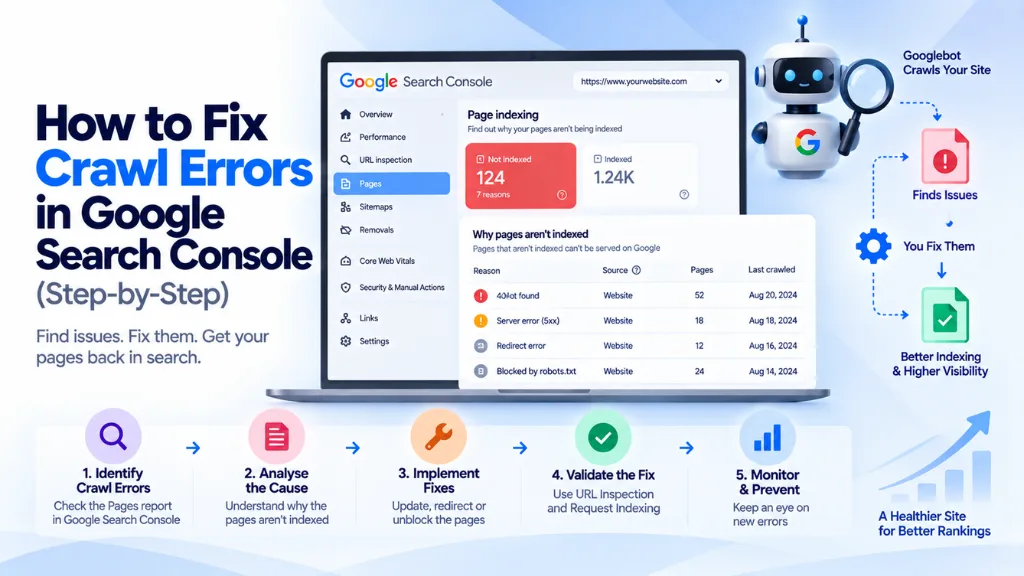

“Crawl errors” isn’t an official Search Console label anymore, but the problem it used to describe hasn’t gone away – Googlebot still fails to fetch pages, still gets blocked by robots.txt, and still runs into server errors that keep content out of the index. The reporting has just moved. To fix crawl errors in 2026, you need to know that this data now lives across two connected reports – Pages (formerly Index Coverage) and Crawl Stats – rather than a single “Crawl Errors” screen.
In this article11 sections
This guide walks through exactly where to find crawl and indexing problems in the current Search Console interface, what each status actually means, and the specific fix for each one, in the order you should tackle them.
Where Crawl Errors Live in Search Console Today#
Google has redesigned Search Console several times, and the “Crawl Errors” report site owners used years ago no longer exists under that name. Today, crawl and indexing problems are split across two places:
- Indexing → Pages report: shows why individual URLs aren’t indexed, including crawl-related exclusions like server errors, redirect problems, and robots.txt blocks.
- Settings → Crawl stats report: shows Googlebot’s actual request history – response codes, file types, crawl purpose, and host-level availability – for root-level properties.
The Pages report tells you which URLs have a problem and why Google excluded them. The Crawl Stats report tells you what’s happening at the server level across your whole site, including intermittent errors that a single-URL check might miss entirely.
Step 1: Open the Pages Report and Read the Breakdown#
- Log into Search Console and select your property.
- In the left-hand menu, click Indexing → Pages.
- The top of the report shows a stacked chart of indexed pages (green) against non-indexed pages (gray) over time.
- Below the chart, a table lists specific reasons pages aren’t indexed, each with a count of affected URLs.
Click into any reason to see the exact list of affected URLs, along with example pages you can inspect individually.
Step 2: Understand What Each Status Actually Means#
Not every status in the Pages report is a “crawl error” in the traditional sense – some are deliberate exclusions, and treating them all as problems to fix wastes time. Here’s how to tell the difference.
| Status | What It Means | Is It a Problem? |
| Server error (5xx) | Your server returned an error when Googlebot tried to fetch the page | Yes – fix immediately |
| Redirect error | Googlebot couldn’t follow a redirect – often a redirect chain or loop | Yes – fix the redirect |
| Not found (404) | The page doesn’t exist at that URL | Depends – fix if the URL should exist, ignore if intentionally removed |
| Soft 404 | The page returns a 200 status but Google believes the content is effectively an error page | Yes – usually needs a real 404/410 or content added back |
| Blocked by robots.txt | Your robots.txt file disallowed the crawl | Depends – intentional for some URLs, a mistake for others |
| Excluded by ‘noindex’ tag | The page has a noindex directive | Only a problem if unintentional |
| Duplicate without user-selected canonical | Google found similar URLs and picked one without your input | Yes – add a clear canonical signal |
| Crawled – currently not indexed | Google fetched the page but chose not to index it, usually for quality or relevance reasons | Yes, if the page matters – content issue, not a technical crawl error |
| Discovered – currently not indexed | Google knows the URL exists but hasn’t crawled it yet, often due to crawl budget or prioritization | Depends – usually resolves on its own for lower-priority pages |
The distinction between “Crawled – currently not indexed” and “Discovered – currently not indexed” trips up a lot of site owners. “Discovered” means Googlebot hasn’t fetched the page at all yet – the delay is about crawl scheduling. “Crawled” means Googlebot did fetch it and then made a deliberate decision not to add it to the index, which points to a content quality or duplication issue rather than a crawling problem, and re-submitting the URL for indexing won’t fix it on its own.
Step 3: Fix Server Errors (5xx)#
A 5xx status means your server failed to respond correctly when Googlebot requested the page – the crawl equivalent of a website going down for a visitor.
- Use the URL Inspection tool to test the live URL and confirm whether the error is still occurring.
- Check server logs or your hosting provider’s uptime monitoring around the time the errors were reported.
- Look for patterns: errors concentrated around a specific time of day often point to server overload rather than a broken page.
- If a firewall or bot-management rule is blocking Googlebot specifically, verify Googlebot’s IP ranges aren’t being rate-limited or challenged by a CAPTCHA.
- Once fixed, use Validate Fix in the Pages report to prompt Google to recheck the affected URLs.
Step 4: Fix Redirect Errors#
Redirect errors occur when Googlebot can’t successfully follow a redirect – usually because of a redirect chain (A → B → C), a redirect loop (A → B → A), or a redirect pointing to an invalid destination.
- Map out the full redirect path for the affected URL using a tool like Screaming Frog or a browser’s network inspector.
- Collapse chains so every redirect points directly to its final destination in a single hop.
- Check for loops, which usually stem from a misconfigured .htaccess rule, CMS redirect plugin conflict, or leftover rule from a past migration.
- Confirm the final destination returns a 200 status and isn’t itself blocked or noindexed.
Step 5: Handle Not Found (404) and Soft 404 Errors#
A standard 404 isn’t automatically a problem – pages get retired intentionally all the time. The fix depends on intent:
- If the URL should still exist, restore the content or 301 redirect it to the closest relevant live page.
- If the URL was intentionally removed and has no replacement, a plain 404 or 410 status is the correct, honest signal to send – no further action needed.
- If large numbers of legitimate URLs are 404ing after a migration, audit your redirect map for gaps rather than fixing pages one at a time.
A soft 404 is different and often overlooked: the server returns a 200 status, but Google’s own quality assessment determines the page functions like an error page – typically near-empty content, a generic “nothing here” message, or a template rendering incorrectly. Fix this by either returning a genuine 404/410 status if the page should no longer exist, or adding real content if it should.
Step 6: Review Robots.txt Blocks#
“Blocked by robots.txt” simply means Googlebot followed your instructions and didn’t crawl the URL – it’s not inherently an error. Check whether the block was intentional:
- Open your robots.txt file and locate the disallow rule affecting the URL pattern.
- If the block is intentional – admin pages, internal search results, staging environments – leave it as is.
- If the block is accidental, often from an overly broad wildcard rule, narrow the disallow pattern so it only catches the URLs you actually want excluded.
- Never use robots.txt as a substitute for canonicalization or noindex – Google can still index a disallowed URL without crawling its content if enough external signals point to it.
Step 7: Cross-Check with the Crawl Stats Report#
The Pages report shows indexing outcomes; the Crawl Stats report shows what’s happening at the request level, which catches issues the Pages report alone might not surface clearly.
- Go to Settings → Crawl stats (available for root-level properties only – not for subfolder properties).
- Review the Host status section, which evaluates DNS resolution, robots.txt fetching, and server connectivity over roughly the last 90 days.
- Check the response code breakdown – a healthy site should show the large majority of requests returning 200. A rising share of 4xx or 5xx responses signals a problem worth investigating even before it shows up as an indexing issue.
- Look at crawl purpose (Discovery vs. Refresh). A discovery-heavy pattern usually means Google is finding a lot of new or poorly linked URLs; a refresh-heavy pattern means it’s mostly revisiting known pages.
- Check Googlebot type. Most sites should see crawling dominated by the smartphone Googlebot, consistent with Google’s mobile-first indexing approach – a large share of desktop-only crawling can be worth investigating on a site expecting mobile-first treatment.
Make it a habit to check Crawl Stats 48 hours after any major deployment. Intermittent server errors often don’t surface in manual browser testing but appear clearly under the volume of a full Googlebot crawl.
Common Mistakes When Fixing Crawl Errors#
- Treating every “Discovered – currently not indexed” URL as broken. For lower-priority pages, this status often resolves on its own as Google works through its crawl queue – it isn’t automatically a technical error.
- Repeatedly clicking Request Indexing on a “Crawled – currently not indexed” page. This status reflects a quality or duplication decision, not a missed crawl, so resubmitting the same unchanged content won’t change the outcome.
- Blocking a URL in robots.txt to try to remove it from the index. A disallowed page can still be indexed without its content if enough links point to it; use noindex or a 404/410 instead if the goal is removal.
- Ignoring soft 404s because the page “looks fine” to a human visitor. Soft 404s often stem from thin or templated content that reads acceptably to a person but reads as empty to Google’s quality assessment.
- Only checking the Pages report and skipping Crawl Stats. Server-level problems like intermittent 5xx spikes or DNS issues can exist for weeks before they fully show up as indexing exclusions.
- Assuming Search Console data reflects real-time reality. Indexing and crawl reports are delayed, sampled, and processed in batches – useful for spotting patterns, not for confirming that a fix worked within minutes of deploying it.
Frequently Asked Questions#
What replaced the “Crawl Errors” report in Google Search Console? Crawl and indexing data now live in the Indexing → Pages report, which explains why individual URLs aren’t indexed, and the Crawl Stats report under Settings, which shows Googlebot’s request history and server-level availability.
How long does it take for a fix to show up in Search Console after I resolve a crawl error? There’s no fixed timeline. Using Validate Fix in the Pages report prompts a recrawl, but Search Console data is inherently delayed and processed in batches, so checking again after a few days is more reliable than expecting an immediate update.
Is “Discovered – currently not indexed” the same problem as “Crawled – currently not indexed”? No. “Discovered” means Google hasn’t crawled the page yet, often due to crawl budget or scheduling. “Crawled” means Google fetched the page and made a deliberate decision not to index it, which usually points to a content or duplication issue rather than a crawl delay.
Should I be worried about every 404 error in Search Console? No. A 404 for a URL that was intentionally retired and has no replacement is the correct, expected behavior. Only investigate 404s for URLs that should still exist or that are receiving meaningful traffic or links.
Can a robots.txt block prevent a page from being indexed? Not entirely. Google can still index a URL disallowed in robots.txt without crawling its actual content, if enough external signals point to it. If the goal is to fully exclude a page from search results, use a noindex tag or remove the page rather than relying on robots.txt alone.
Why does the Crawl Stats report not appear for my property? The Crawl Stats report is only available for root-level properties – a full domain or a root URL-prefix property. Subfolder properties, like a property scoped to a single blog subdirectory, don’t have access to this report.
The Bottom Line#
Fixing crawl errors in 2026 starts with knowing where the data actually lives – the Pages report for why specific URLs aren’t indexed, and Crawl Stats for what’s happening at the server and request level across the whole site. Work through server errors and redirect problems first, since those are unambiguous technical faults, then use the Crawled/Discovered distinction to separate genuine content problems from normal crawl scheduling delays. For sites with large-scale or recurring crawl issues, Search Savvy’s technical SEO services team routinely works through this exact Pages-and-Crawl-Stats diagnostic process, and a full website audit is a good next step if crawl errors keep resurfacing after individual fixes.