Best Free WordPress Plugins for SEO in 2026 (Compared)
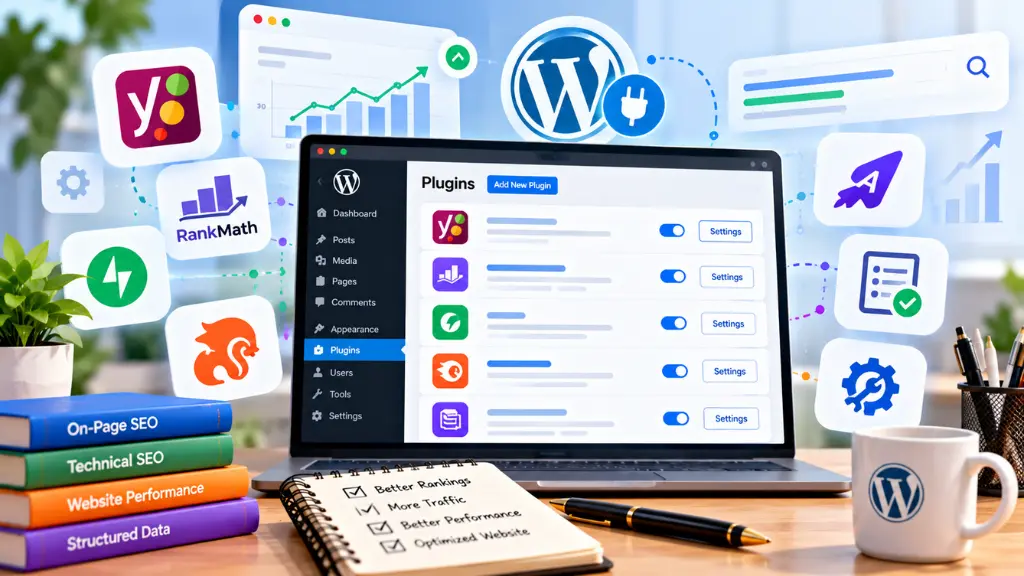

The best free WordPress SEO plugins for most sites are one all-in-one SEO plugin (Yoast SEO or Rank Math), one caching plugin matched to your host, and one image compression plugin. WordPress already generates a basic XML sitemap, so you rarely need a separate sitemap plugin. More plugins do not mean better SEO. Each one adds code, update risk, and potential conflicts.
In this article21 sections
This guide compares the free options in each category, explains the limits of their free tiers, and shows which combination fits which type of site.
How These Plugins Were Chosen#
This is a comparison based on published documentation, WordPress.org listings, install counts, and free-tier limits. It is not a lab benchmark. Plugin performance depends on your theme, host, and other plugins, so install on a staging copy first and measure before and after with PageSpeed Insights and Google Search Console. Features and limits change with updates, so confirm details on each plugin’s page before relying on them.
What Are the Best Free WordPress SEO Plugins in 2026?#
Short answer: For most sites: Yoast SEO or Rank Math for on-page SEO and sitemaps, LiteSpeed Cache or WP Super Cache for caching, and Smush, ShortPixel, or EWWW Image Optimizer for images. Choose one plugin per job.
| Job | Free options to consider | Choose one because |
| On-page SEO, schema, sitemaps | Yoast SEO, Rank Math | Both cover titles, meta descriptions, schema, and XML sitemaps |
| XML sitemap | WordPress core, or your SEO plugin | Core sitemaps exist since WordPress 5.5 |
| Caching | LiteSpeed Cache, WP Super Cache | Fits your server type |
| Image compression | Smush, ShortPixel, EWWW Image Optimizer | Fits your image volume and hosting resources |
| Search data in the dashboard | Site Kit by Google | Brings Search Console data into WordPress |
Which Free SEO Plugin Is Better: Yoast SEO or Rank Math?#
Short answer: Both are capable. Yoast is the longest-established option and Rank Math bundles more features in its free version. Pick the one whose settings you understand, and never run both at once.
Install counts show how widely each is used. A WordPress plugin directory tracker lists Yoast SEO at 10 million or more active installations and Rank Math at 4 million or more, both with thousands of reviews.
Yoast SEO plugin#
Yoast gives you a guided editor for titles, meta descriptions, canonical URLs, schema, and XML sitemaps. Its content and readability checks are a prompt for editors, not a ranking guarantee. Some conveniences, such as the redirect manager, sit in the paid version, so check the current comparison before assuming a feature is free.
Rank Math free version#
Rank Math’s free version is known for packing schema options, a setup wizard, Search Console integration, and monitoring tools into one plugin. The trade-off is more settings to learn. Review its modules and disable the ones you do not need to keep the plugin lean.
How to decide#
- Choose Yoast if you want a familiar, editor-friendly workflow and your team already knows it.
- Choose Rank Math if you want more built-in features without adding other plugins.
- Whichever you choose, configure titles, canonical settings, and indexing rules deliberately. Plugins are tools, not strategy.
Do You Need an XML Sitemap Plugin?#
Short answer: Usually not. WordPress core has generated an XML sitemap index at /wp-sitemap.xml since version 5.5. Your SEO plugin may replace it with its own sitemap, which is fine. Only one sitemap system should be active.
According to the WordPress core team’s announcement, core sitemaps follow the sitemaps.org format and do not include image, video, or news sitemap extensions. The same post notes that if you set WordPress to discourage search engines from indexing your site, sitemaps are disabled. That setting is a common reason a sitemap seems to vanish, so check Settings > Reading first.
Helpful practices:
- Submit your sitemap URL in Search Console.
- Exclude thin or utility pages from the sitemap.
- If you need to adjust core sitemaps without a full SEO plugin, a small utility like WP Sitemaps Config can disable post types or exclude individual pages.
- For static pages outside WordPress, Search Savvy’s free sitemap XML generator can create the file.
What Is the Best Free WordPress Caching Plugin?#
Short answer: It depends on your host. Pick LiteSpeed Cache if your server runs LiteSpeed. Choose a page-caching plugin such as WP Super Cache if you want a simpler setup on a different stack. Run only one caching plugin.
Caching reduces how often WordPress must build pages from scratch, which can improve server response time and help Largest Contentful Paint. Google’s Core Web Vitals target for LCP is 2.5 seconds or less, measured at the 75th percentile of real visits, as explained on web.dev.
| Plugin | Strength | Watch out for |
| LiteSpeed Cache | Server-level caching and many optimization options on LiteSpeed hosting | Fewer benefits on non-LiteSpeed servers; many settings can overwhelm beginners |
| WP Super Cache | Straightforward page caching by Automattic | Fewer advanced optimization features |
Test carefully after enabling caching. Aggressive JavaScript or CSS options can break forms, carts, and menus. Exclude checkout, account, and other dynamic pages from the cache.
What Is the Best Free Image Compression Plugin for WordPress?#
Short answer: Smush suits simple, no-cap compression on smaller images. ShortPixel suits sites that want modern formats and are comfortable with a monthly credit system. EWWW compresses on your own server, which is free but uses hosting resources.
Heavy images are a frequent cause of slow LCP. Free tiers differ in meaningful ways:
| Plugin | Free-tier points reported by reviewers |
| Smush | Free compression with no monthly cap, but a 5 MB per-image limit, according to a DEV Community comparison |
| ShortPixel | 100 credits per month on the free plan; credits are the unit, so generating WebP and AVIF versions can use more credits, per FS Code’s 2026 comparison |
| EWWW Image Optimizer | Free local compression on your server, which can add load on weaker hosting |
A note on sourcing: ShortPixel publishes its own comparison article, so treat vendor claims cautiously and test with your own images. Also avoid running two image optimizers at once, since double compression and format conflicts can cause quality problems.
Before compressing, resize oversized uploads. A 4,000-pixel-wide photo displayed at 800 pixels wastes bandwidth no plugin fully recovers.
What Other Free Plugins Help SEO?#
Add these only if you have a real need:
- Site Kit by Google to view Search Console and analytics data inside WordPress.
- A redirect manager such as the free Redirection plugin, if your SEO plugin does not include redirects.
- A broken-link or 404 monitor, though your SEO plugin or Search Console may already cover this.
Check technical items outside plugins, too. Your robots.txt file controls crawling, and a free robots.txt generator can help you draft it. If your plugin outputs structured data, run pages through a schema markup validator to catch errors.
Which Plugin Stack Fits Which Site?#
| Site type | Suggested free stack | Notes |
| New blog or portfolio | One SEO plugin, core sitemap, one image compressor | Keep it minimal; add caching if your host does not already cache |
| Local business site | SEO plugin with local schema, caching, image compression | Add LocalBusiness schema if your plugin’s local features are limited |
| Content-heavy blog | SEO plugin, caching, image compression, redirect manager | Watch plugin overhead as the site grows |
| WooCommerce store | SEO plugin, caching with careful exclusions, image compression | Exclude cart and checkout from cache |
How Do You Set Up SEO Plugins Safely?#
- Back up the site and test on a staging copy where possible.
- Install one SEO plugin and run its setup wizard. Choose the correct site type and indexing options.
- Confirm your sitemap loads and submit it in Search Console.
- Enable caching with conservative defaults, then test forms, menus, and logins.
- Compress existing images in batches, and set new uploads to compress automatically.
- Measure. Record PageSpeed Insights and Search Console data before and after.
- Review quarterly. Remove plugins you do not use and keep the rest updated.
Common Plugin Mistakes to Avoid#
- Running two SEO plugins. Duplicate meta tags, schema, and sitemaps confuse crawlers.
- Installing plugins for features your host already provides, such as caching or image delivery.
- Leaving “discourage search engines” enabled after launch.
- Trusting plugin scores (green lights) over real content quality and search data.
- Over-optimizing performance settings until the site breaks.
- Ignoring updates, which creates security and compatibility risks.
If plugin conflicts, indexing issues, or speed problems persist, Search Savvy’s technical SEO services can help diagnose crawl and rendering problems that plugins cannot fix.
Frequently Asked Questions#
What is the best free SEO plugin for WordPress?#
Yoast SEO and Rank Math are the two most widely used free options. Both handle titles, meta descriptions, schema, and sitemaps. Choose one, configure it carefully, and do not install both.
Do I need a plugin for XML sitemaps in WordPress?#
Usually no. WordPress core creates a sitemap at /wp-sitemap.xml since version 5.5, and most SEO plugins provide their own. Make sure only one sitemap is active and submit it in Search Console.
Can too many plugins hurt SEO?#
They can. Extra plugins can slow pages, create conflicts, or add security risk. Keep only the ones that solve a specific problem and test performance after each change.
Is Rank Math’s free version enough?#
For many sites, yes. It includes a wide set of on-page and schema features. If you need advanced features, compare current paid plans, but test the free version first.
Should I use a caching plugin if my host already caches?#
Check with your host. Many hosts provide server-level caching, and adding another layer can cause conflicts. Use a plugin only if it adds something your host does not.
Do SEO plugins guarantee higher rankings?#
No. Plugins help with technical setup and consistency. Rankings still depend on content quality, relevance, authority, and user experience.
The Practical Takeaway#
Start small: one SEO plugin, your core or plugin sitemap, one cache solution that suits your host, and one image compressor. Measure the effect, then add tools only when a clear gap appears. If you want a second opinion on your setup, Search Savvy offers a website audit that reviews technical health alongside your content, and its free SEO tools cover many quick checks.