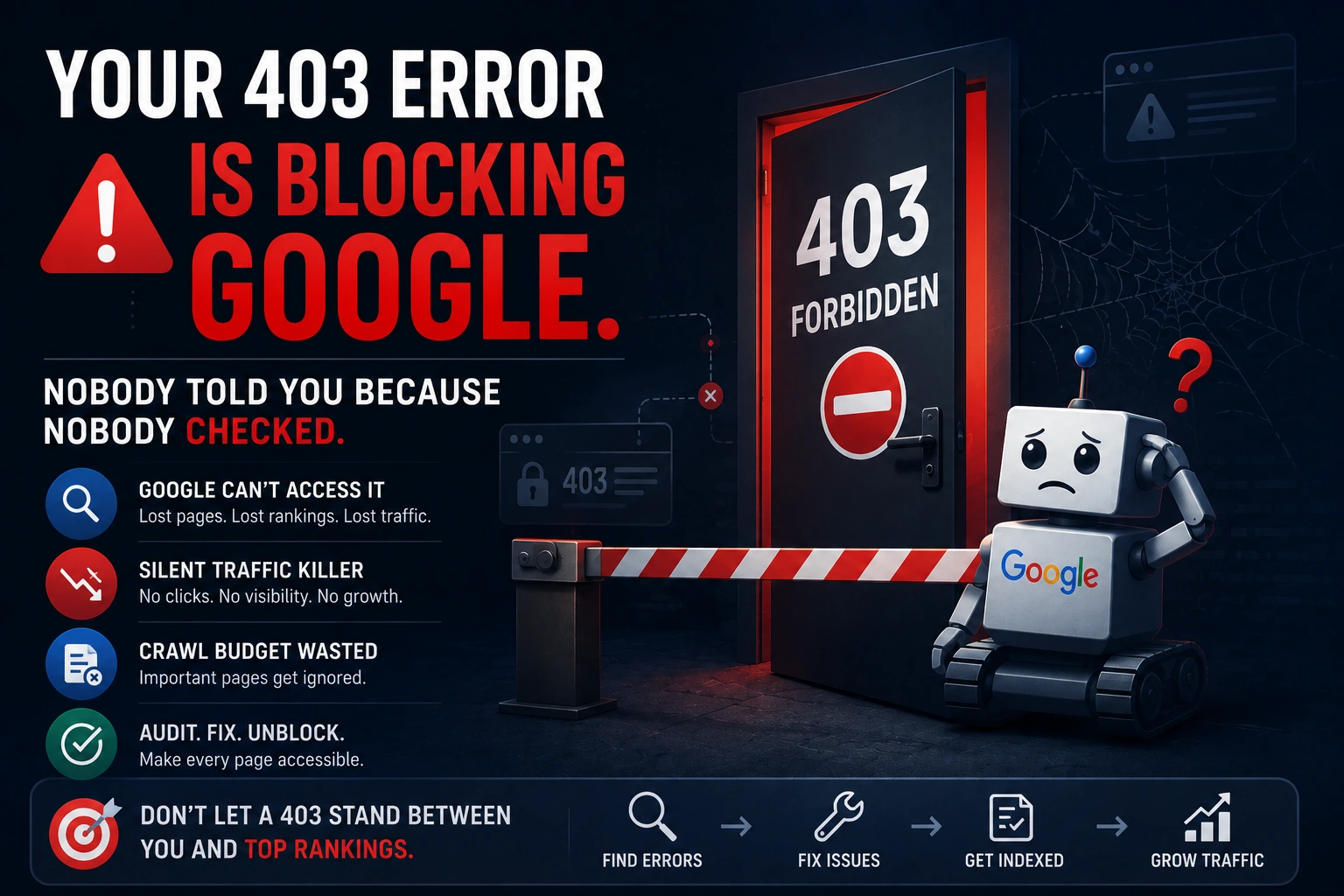

The 403 error SEO crawl block is the most quietly damaging technical SEO issue on the web – not because it is difficult to fix, but because it is almost never noticed until it has already done significant damage. Your rankings didn’t drop. You didn’t get a Google Search Console penalty notification. Your site is up, your pages load perfectly in a browser, and nothing in your analytics dashboard suggests anything is wrong. Meanwhile, Googlebot has been visiting your most important pages for weeks, receiving an HTTP 403 Forbidden response, and silently giving up on them.
No crawl. No index update. No appearance in AI Overviews. The page is live for human visitors and dead to every search engine that matters.
This is what makes 403 errors specifically dangerous: they are silent failures. A 404 error tells you a page is gone. A 503 tells you the server is down. A 403 tells Googlebot that it does not have permission to access this page – and unlike a human user who might try again or complain to support, Googlebot notes the block, adjusts its crawl schedule, and moves on.
At Search Savvy, the 403 error SEO crawl block is one of the most consistent findings in technical site audits – and one of the most frequently overlooked issues in regular site maintenance. It appears after plugin updates, firewall rule changes, Cloudflare configuration adjustments, and security hardening – any one of which can block Googlebot without blocking a single human visitor.
What Is a 403 Error SEO Crawl Block and Why Is It Different From Other Crawl Errors?
The 403 error SEO crawl block occurs when your web server returns an HTTP 403 Forbidden status code to Googlebot in response to a crawl request. This status code means: “The server understood the request but refuses to authorise it.”
This is critically different from other crawl errors:
- 404 Not Found – the page doesn’t exist. Google treats this as a soft signal. Pages that return 404 consistently are eventually removed from the index.
- 503 Service Unavailable – the server is temporarily down. Google retries and typically preserves the page in its index while waiting for the server to recover.
- 301/302 Redirect – Google follows the redirect and indexes the destination URL.
- 403 Forbidden – the server is working, the page exists, but access is explicitly denied to this specific requester.
The 403 response tells Google: “You are not allowed here.” And because Googlebot never presents credentials when crawling – it visits as an anonymous user – a 403 on a publicly-intended page is almost always a server misconfiguration, not an intentional access control decision.
The consequence is immediate and total: a page returning 403 to Googlebot cannot be crawled, cannot be indexed, and cannot appear in organic search results or AI Overviews for as long as the error persists. There is no gradual degradation. The page is simply absent from Google’s eyes.
In 2026, the impact extends beyond traditional search. AI Overviews appear on approximately 21% of all Google searches, with informational queries triggering them at nearly 57.9%. A commercial or informational page blocked by a 403 error is invisible to this entire channel for as long as the error persists. And with AI search traffic growing at 527% year-over-year, the cost of an undetected 403 crawl block is compounding faster than it has ever been.
What Causes a 403 Error SEO Crawl Block on a Publicly-Intended Page?
The 403 error SEO crawl block on pages that should be accessible to Googlebot typically traces to one of five root causes. Identifying which applies to your specific situation is the diagnostic step that determines the correct fix.
Cause 1: Bot Detection and Security Plugins Misidentifying Googlebot
This is the most common cause in 2026 – and the most insidious, because it usually appears after a security update, not when you first configure your site.
Security plugins on WordPress (Wordfence, iThemes Security, Sucuri), Cloudflare’s Bot Fight Mode, and WAF (Web Application Firewall) rules are all designed to block malicious bots. The problem: their threat detection algorithms sometimes misclassify Googlebot’s IP addresses as suspicious traffic, particularly when they detect high crawl frequency from a single IP range – which is exactly how legitimate Googlebot behaviour looks.
Googlebot’s IP addresses are publicly documented in Google’s verified Googlebot IP list. If your security plugin or firewall is blocking IPs in those ranges, it is blocking Googlebot.
Common culprits:
- Cloudflare Bot Fight Mode set to “Super Bot Fight Mode” – known to block Googlebot in some configurations
- Cloudflare WAF rules with aggressive rate limiting
- Wordfence “Block immediately if fake Googlebot” combined with Googlebot IP range changes
- Sucuri WAF with strict bot management settings
- Custom .htaccess rules that block IP ranges encompassing Googlebot’s documented addresses
Cause 2: .htaccess Errors and Misconfiguration
The .htaccess file on Apache-based servers (the majority of shared hosting environments used by Indian SMBs) controls access rules at the directory level. A single malformed rule – a syntax error, an incorrect IP block, or a misplaced deny from all directive – can block Googlebot from every page in a directory.
.htaccess errors are particularly dangerous because they frequently appear after:
- WordPress plugin installations that modify .htaccess (WooCommerce, security plugins, caching plugins)
- Manual edits made by developers
- Server migration or cPanel changes
- Automatic WordPress updates that rewrite .htaccess with conflicting rules
The standard .htaccess rule that causes widespread Googlebot blocks:
Order Deny,Allow
Deny from all
Allow from [specific IP]
If this rule is applied at the root level and the “Allow” IP list does not include Googlebot’s IP ranges, every Googlebot request to every page on the site returns 403.
Cause 3: Incorrect File Permissions on Linux Servers
File permissions on Linux servers control which processes can read files. If your pages or WordPress files have permissions set to 600 or 640 rather than the standard 644, the web server process may be unable to read them – returning 403 to any requester, including Googlebot.
This commonly occurs after:
- Manual file transfers via FTP (which can strip or reset permissions)
- Server migrations between hosting providers
- Backup restoration processes
- SSH commands run with the wrong permissions mask
The correct file permission for web-accessible files is 644 (owner read/write, group and world read). Directories should be 755. Permissions set more restrictively than this create 403 errors at scale.
Cause 4: Geographic IP Blocking
Some servers implement geographic IP blocking – blocking all traffic from specific countries or IP ranges associated with those countries. Googlebot’s crawl servers are distributed globally, but a significant portion operate from US-based data centre IP ranges. If your server blocks US IP ranges (a common anti-spam measure for India-based sites that receive large volumes of US-origin bot traffic), it may block Googlebot’s US-based crawlers.
This is a particularly common cause of 403 errors in Indian-hosted websites with aggressive geographic security rules.
Cause 5: Authentication Requirements Applied to Public Content
Some content management systems or e-commerce platforms accidentally apply authentication requirements to pages that should be publicly accessible. A Shopify or WooCommerce plugin that introduces login-wall behaviour on product pages, a staging/production environment mismatch that carries authentication requirements from staging to production, or a caching configuration that serves protected content headers on public pages can all produce 403 responses to Googlebot.
How Do You Find 403 Errors in Your Google Search Console in 2026?
The 403 error SEO crawl block detection process starts – and should always start – with Google Search Console’s Page Indexing report.
Step-by-step detection via Google Search Console:
- Open Google Search Console and navigate to your property
- In the left navigation, click Indexing → Pages
- On the Page Indexing Report, scroll down to the list of indexing issues
- Look for the entry “Blocked due to access forbidden (403)”
- Click on it to see the full list of affected URLs and when Google last attempted to crawl each one
This report is the first place most site owners discover they have a 403 problem – which means the error has typically been active for days, weeks, or months before discovery.
What Google Search Console doesn’t show you:
Search Console only surfaces URLs that Google has already tried to crawl. It does not proactively scan your entire URL inventory. Pages that have never been crawled, pages blocked before they entered the crawl queue, and pages that Google has deprioritised for re-crawling may not appear in the report even if they are returning 403.
For a comprehensive 403 audit, combine Search Console data with a crawler-based scan:
Using Screaming Frog:
- Set the user agent to Googlebot (User-Agent dropdown → Custom)
- Crawl your full site
- Filter the results by status code 403
- Export the full list for remediation
Using the URL Inspection Tool: For any specific URL you suspect, use the URL Inspection tool in Search Console:
- Enter the URL in the search bar
- Click “Test Live URL”
- If the result shows “URL is not on Google” with a 403 status, the page is currently blocked
At Search Savvy, we run both a Screaming Frog Googlebot crawl and a Search Console Page Indexing review as standard components of every technical audit. The combination catches errors that either tool alone would miss.
How Do You Fix a 403 Error SEO Crawl Block in 2026?
The 403 error SEO crawl block fix depends entirely on which of the five root causes applies. This is why the diagnosis step is non-negotiable – applying the wrong fix not only fails to resolve the issue but can introduce new security vulnerabilities.
Fix 1: Whitelist Googlebot in Your Security Plugin or WAF
If your security plugin or Cloudflare configuration is blocking Googlebot, the fix is to add Googlebot’s verified IP ranges to your allow list.
Google’s verified Googlebot IP ranges are available at: https://developers.google.com/search/docs/crawling-indexing/verifying-googlebot
For WordPress security plugins:
- Wordfence: Whitelist → IP Allowlist → Add Googlebot IP ranges
- Sucuri: Whitelist → IP Address Whitelist → Add documented Googlebot IPs
For Cloudflare:
- Security → WAF → Managed Rules → Create Exception for Googlebot user agent
- Or: Security → Bots → Configure Bot Fight Mode → allow verified search engine bots explicitly
Important: Always verify that a user agent claiming to be Googlebot is actually Googlebot before whitelisting. Use Google’s Googlebot verification guide – look up the reverse DNS of the IP making the request.
Fix 2: Audit and Correct Your .htaccess File
Back up your .htaccess file before making any changes. Then inspect it for:
- Deny from all without corresponding Allow rules covering Googlebot’s IPs
- IP-specific blocks that inadvertently include Googlebot’s documented IP ranges
- Plugin-generated rules that conflict with each other
- Any rules blocking based on user agent strings that might match Googlebot
The safest starting .htaccess for a WordPress site that should be publicly crawlable:
# BEGIN WordPress
RewriteEngine On
RewriteBase /
RewriteRule ^index\.php$ – [L]
RewriteCond %{REQUEST_FILENAME} !-f
RewriteCond %{REQUEST_FILENAME} !-d
RewriteRule . /index.php [L]
# END WordPress
This is the standard WordPress .htaccess – nothing more, nothing more. Security rules should be handled at the plugin or Cloudflare level, not inline in .htaccess, where they create maintenance and conflict risks.
Fix 3: Correct File Permissions
Use your hosting provider’s file manager, FTP client, or SSH to set correct permissions:
- Files: 644 (-rw-r–r–)
- Directories: 755 (drwxr-xr-x)
For bulk correction via SSH:
find /path/to/your/site -type f -exec chmod 644 {} \;
find /path/to/your/site -type d -exec chmod 755 {} \;
After correcting permissions, verify the fix with the Search Console URL Inspection tool.
Fix 4: Remove Overly Aggressive Geographic IP Blocks
Review your server’s IP block rules and remove any geographic blocks that include Googlebot’s documented IP ranges. If geographic blocking is essential for your site’s security posture, implement it at the application layer with user agent exceptions for verified search engine bots rather than at the server IP block level.
Fix 5: Request Re-indexing After Each Fix
After implementing any 403 fix, you must trigger Google’s re-evaluation. This does not happen automatically.
- In Google Search Console, navigate to the URL Inspection tool
- Enter the affected URL
- Click “Request Indexing”
For a small number of affected URLs (under 10), request indexing individually. For larger batches, submit an updated XML sitemap to Search Console – this signals to Google that your URL inventory has changed and prompts a re-crawl cycle.
Expect 2–4 weeks before resolved 403 errors clear from the Search Console Page Indexing report. Short-lived 403 errors can cause crawling delays, missed indexing opportunities, and temporarily reduce your site’s visibility in search results if Googlebot encounters repeated blocks during its crawl attempts.
What Are the SEO Consequences of an Unresolved 403 Error in 2026?
The 403 error SEO crawl block consequences extend well beyond traditional rankings in 2026:
Traditional organic rankings: Pages blocked by 403 cannot be re-crawled and re-indexed. Over time, Google deprioritises their crawl budget allocation for your domain. A cluster of 403 errors on important pages can trigger Google to reduce overall crawl frequency across your site – affecting pages that aren’t directly blocked.
AI Overview invisibility: Pages that cannot be indexed cannot appear in AI Overviews. Given that AI Overviews now trigger on 21% of all Google searches and AI search traffic has grown 527% year-over-year, this is no longer a minor secondary impact.
AI crawler blocking (GPTBot, PerplexityBot, ClaudeBot): The same security configurations that block Googlebot almost always block AI crawlers too. A 403 block is not selective to Google – it blocks every crawler that does not present the credentials your server requires. This means unresolved 403 errors simultaneously remove pages from traditional search, Google AI Overviews, ChatGPT citations, and Perplexity answers.
Search Console crawl budget impact: Google allocates crawl budget to your domain based on historical crawlability. A site with a high 403 error rate tells Google’s systems that a significant portion of its URLs are inaccessible – and Google’s response is to reduce the frequency at which it attempts to crawl your domain. This “crawl budget erosion” can persist for weeks after the 403 errors are resolved.
How Do You Prevent 403 Errors From Reappearing After You Fix Them?
The 403 error SEO crawl block is one of the errors most likely to recur – because the conditions that cause it (security plugin updates, Cloudflare rule changes, .htaccess modifications) happen routinely in normal site maintenance.
Prevention framework:
- Set up automated crawl monitoring – tools like Screaming Frog, Sitechecker, or Ahrefs Site Audit can be scheduled to crawl with Googlebot’s user agent weekly and alert on new 403 responses
- Review Search Console Page Indexing weekly – a 10-minute weekly check catches 403 errors before they accumulate impact
- Test the live URL after every security change – whenever you update a security plugin, modify Cloudflare rules, or change .htaccess, immediately use the Search Console URL Inspection tool to verify Googlebot can still access your priority pages
- Whitelist Googlebot before hardening security – add Googlebot’s IP ranges and user agent to your security allow lists before activating new protection rules, not after diagnosing why they broke
- Monitor after plugin updates – WordPress plugin updates are one of the most common triggers for new 403 errors; test key URLs in Search Console after any security or performance plugin update
FAQ: 403 Error SEO Crawl Block in 2026
Q1: What does “Blocked due to access forbidden (403)” mean in Google Search Console? It means Googlebot attempted to crawl a URL on your site and your server returned an HTTP 403 Forbidden response – denying Googlebot access to the page. Pages returning 403 to Googlebot cannot be crawled or indexed, cannot appear in organic search results, and cannot appear in AI Overviews. If the page is publicly intended, this is a misconfiguration that must be corrected. If the page is legitimately private (login-walled or restricted content), the 403 response is expected.
Q2: Does a 403 error cause a ranking drop? Not immediately – and this is what makes 403 errors dangerous. When Googlebot first encounters a 403, it makes a note and schedules a retry. If the 403 persists across multiple crawl attempts, the page’s indexed content becomes stale (Google stops updating it) and eventually the page may drop from the index entirely. For pages that have been returning 403 for weeks, the ranking impact can be significant. Even short-lived 403 errors can cause crawling delays and missed indexing opportunities during the window they are active.
Q3: What are the most common causes of 403 errors on WordPress sites? The five most common causes on WordPress sites in 2026 are: (1) security plugins or Cloudflare WAF rules incorrectly classifying Googlebot’s IP addresses as malicious; (2) .htaccess misconfiguration, often introduced by plugin updates; (3) incorrect Linux file permissions (files set to 600 or 640 instead of 644); (4) aggressive geographic IP blocking that includes Googlebot’s US-based crawl servers; and (5) authentication requirements accidentally applied to public pages through staging/production environment mismatches.
Q4: How long does it take for Google to re-index a page after fixing a 403 error? After fixing a 403 error and requesting re-indexing through Search Console’s URL Inspection tool, most pages are re-crawled within 2–7 days for high-priority sites. However, if the 403 persisted long enough to cause Googlebot to reduce its overall crawl frequency for your domain, full re-indexing of all affected pages can take 2–4 weeks. Always use Search Console’s “Request Indexing” feature after fixing each affected URL to accelerate the re-crawl process.
Q5: Does a 403 error also block AI crawlers like GPTBot and PerplexityBot? Yes – in most cases. The security configurations that produce 403 errors for Googlebot (Cloudflare WAF rules, .htaccess IP blocks, security plugin rules) typically block all non-authenticated crawlers, including GPTBot, PerplexityBot, ClaudeBot, and other AI crawlers. This means a 403 crawl block simultaneously removes your content from traditional Google rankings, Google AI Overviews, ChatGPT citations, and Perplexity answers. Resolving the block restores visibility across all these surfaces.
Q6: How do I check if a specific page is blocked by a 403 error? The fastest method is Google Search Console’s URL Inspection tool: navigate to your property, enter the URL in the search bar, and click “Test Live URL.” A 403-blocked page will show “URL is not on Google” with a 403 status code. For a site-wide check, use Screaming Frog with a Googlebot user agent setting – crawl your site, filter results by status code 403, and export the complete list of blocked pages. The Page Indexing report in Search Console (Indexing → Pages) also shows all pages Google has detected as returning 403 responses.
The Bottom Line
The 403 error SEO crawl block is the technical SEO problem that hides in plain sight – silently preventing your most important pages from being crawled, indexed, or cited in AI Overviews while your analytics dashboard shows nothing unusual. The site works. Users access it normally. And Googlebot has been politely turned away at the door for weeks.
In 2026, with AI Overviews now covering 21% of all searches and AI search traffic growing at 527% year-over-year, the cost of an undetected crawl block is higher than it has ever been. A 403 error doesn’t just affect your position in the ten blue links. It removes your content from every AI-mediated answer surface simultaneously.
The fix is almost always straightforward once the cause is identified. The problem is that without active monitoring, you will never know the cause, because you will never know the error exists.
According to Search Savvy’s technical audit practice, checking for 403 errors in Search Console takes less than ten minutes per week. Setting up automated crawl monitoring to detect them immediately after plugin updates or security changes takes less than an hour, one time. These are among the highest ROI maintenance tasks in technical SEO – protecting the visibility that every other part of your strategy is working to build.
If you want a complete technical crawl audit that surfaces every 403 error, crawl block, and indexing issue across your site, reach out to the Search Savvy team. We’ll tell you exactly what Googlebot is seeing – and exactly what needs to change.