
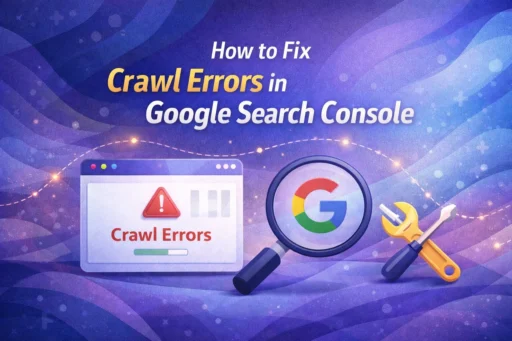

Fix crawl errors – or watch your rankings quietly collapse. That might sound dramatic, but it’s the reality of how Google works. Before your content can rank, before your backlinks can pass authority, and before your SEO strategy can deliver a single result, Google needs to crawl your website. If it can’t, none of the rest matters. At Search Savvy, we’ve audited hundreds of websites and found the same pattern repeatedly: businesses investing heavily in content and link building while crawl errors silently block Googlebot from accessing their most important pages.
This guide explains exactly what crawl errors are, how to find each type in Google Search Console, and – most importantly – how to fix them step by step in 2026.
What Are Crawl Errors – and Why Do They Hurt Your SEO?
Fix crawl errors and you fix one of the most fundamental problems in technical SEO. But first, let’s understand what they actually are.
Crawling is the process by which Googlebot – Google’s web spider – systematically follows links across the web, requesting pages from your server to discover and eventually index your content. When something disrupts this process, Google records a crawl error. According to Google Search Central, these errors can stem from server issues, DNS problems, misconfigured robots.txt files, or broken redirects – among many other causes.
The SEO consequences are real and measurable:
- Pages with crawl errors cannot be indexed and therefore cannot rank.
- Unresolved errors waste your crawl budget – the limited number of pages Google will crawl on your site within a given timeframe.
- A large volume of crawl errors signals to Google that your site is poorly maintained, which can negatively affect how frequently Googlebot returns.
Where Do You Find Crawl Errors in Google Search Console?
Fix crawl errors efficiently by knowing exactly where to look. The old dedicated “Crawl Errors” report no longer exists in Search Console – Google has distributed this data across two key sections:
The Page Indexing Report
Navigate to: Google Search Console → Indexing → Pages
This is your primary destination. The Page Indexing Report shows all URLs Google has discovered, categorised by their status:
- Indexed – Pages successfully crawled and added to Google’s index.
- Not Indexed (Errors) – Pages Google tried to crawl but failed to process correctly.
- Not Indexed (Excluded) – Pages Google didn’t index due to your own signals (noindex tags, canonicals, etc.).
The Crawl Stats Report
Navigate to: Google Search Console → Settings → Crawl Stats
The Crawl Stats Report shows Googlebot’s historical crawling activity on your site, including DNS resolution failures, server connectivity issues, and robots.txt fetch errors over the past 90 days. Think of it as a diagnostic heartbeat monitor for how Google sees your server’s reliability.
The URL Inspection Tool
Navigate to: Google Search Console → URL Inspection → Enter a specific URL
Use this for page-by-page diagnostics. You can test any URL live to see exactly how Googlebot is rendering and interpreting it at that moment.
What Are the Most Common Types of Crawl Errors – and How Do You Fix Each One?
Fix crawl errors the right way by understanding the specific type you’re dealing with. Different errors have different causes and require different solutions. Here are the most common ones you’ll encounter in 2026:
1. How Do You Fix 404 (Not Found) Errors?
Fix crawl errors caused by 404s by implementing proper 301 redirects. A 404 error means Google has tried to visit a URL that no longer exists – most commonly because you deleted a page, restructured your site, or changed a URL without redirecting the old one.
A handful of 404s is perfectly normal. But a large-scale increase in 404 errors tells Google your site is poorly maintained, gradually eroding your crawl budget and authority.
How to fix 404 errors:
- Identify the broken URL in the Page Indexing Report under the “Not Found (404)” category.
- If the page has moved, set up a 301 permanent redirect from the old URL to the new, relevant destination.
- If the content is genuinely gone and has no equivalent, return a proper 404 or 410 (Gone) status code – don’t leave users or bots on an empty page.
- Remove the broken URL from your XML sitemap and update any internal links pointing to it.
WordPress users: Use a plugin like Redirection to manage 301 redirects through a simple UI – no coding required.
2. How Do You Fix Soft 404 Errors?
Fix crawl errors classified as soft 404s by either adding real content or returning the correct status code. A soft 404 is more deceptive than a standard 404 – the page technically returns a 200 OK status, but Google’s algorithm recognises that the page contains no meaningful content. Common culprits include blank tag pages in WordPress, empty category pages, and placeholder “Coming Soon” pages.
How to fix soft 404 errors:
- If the page has no content and serves no purpose, delete it and return a proper 404 or 410 response.
- If the page should exist, add unique, valuable content so Google no longer interprets it as empty.
- If the page has moved, set up a 301 redirect to the correct destination.
3. How Do You Fix Server Errors (5xx)?
Fix crawl errors resulting from 5xx status codes by addressing your server’s stability and configuration. Server errors mean Googlebot reached your domain but your server failed to respond properly. The three most common types are:
- 500 Internal Server Error – A coding or configuration issue within your CMS or server-side scripts.
- 502 Bad Gateway – An upstream service (often your CMS like WordPress) isn’t responding to the server’s request.
- 503 Service Unavailable – Your server is temporarily overwhelmed or under maintenance.
How to fix server errors:
- Check your hosting dashboard’s uptime logs to identify when errors occurred and correlate them with site changes or traffic spikes.
- Compress images, enable server-side caching, and upgrade your hosting plan if chronic server overload is the cause.
- For planned maintenance, return a 503 with a Retry-After header to tell Googlebot exactly when to return. Never leave a 503 active for more than 2–3 days, or Google will reduce your crawl frequency long-term.
- For persistent 500 errors, review your CMS error logs or contact your hosting provider’s support team.
4. How Do You Fix Redirect Errors?
Fix crawl errors from redirect problems by cleaning up your redirect chains and loops. Redirect errors occur when Googlebot follows a redirect but never reaches a final, stable destination. The two main types are:
- Redirect Loops – Page A redirects to Page B, which redirects back to Page A. Googlebot gives up.
- Redirect Chains – Too many sequential redirects (e.g., HTTP → HTTPS → WWW → /new-url). Googlebot may time out before reaching the destination.
How to fix redirect errors:
- Use a crawl tool like Screaming Frog SEO Spider or Ahrefs Site Audit to map your entire redirect structure and identify loops and chains.
- Consolidate chains to a single 301 redirect pointing directly from the original URL to the final destination – remove all intermediate steps.
- Update your internal links and sitemap to point directly to the final URLs, eliminating unnecessary redirect hops.
5. How Do You Fix Robots.txt Crawl Blocks?
Fix crawl errors caused by robots.txt by auditing your directives for unintentional blocks. Your robots.txt file tells Googlebot which pages to crawl and which to skip. A single misplaced Disallow directive can block entire sections of your site – including your most important pages.
How to fix robots.txt errors:
- In Google Search Console, go to the robots.txt Tester to check which URLs are being blocked.
- Review every Disallow directive carefully. A common mistake is adding Disallow: / during development and forgetting to remove it before going live.
- Ensure your CSS, JavaScript, and image files are not blocked – Googlebot needs to render your pages fully to evaluate them accurately.
6. How Do You Fix DNS Errors?
Fix crawl errors related to DNS by verifying your domain’s DNS configuration is correct and stable. DNS errors occur when Google cannot resolve your domain name to an IP address – essentially, Googlebot can’t even find your server.
How to fix DNS errors:
- Use Google’s DNS checker to verify your domain’s DNS records are correctly configured.
- Contact your domain registrar or DNS provider to correct any misconfigurations.
- Schedule DNS updates during low-traffic periods to minimise disruption.
How Do You Use the “Validate Fix” Feature in Search Console?
Fix crawl errors and then confirm Google has accepted the resolution using the Validate Fix button inside the Page Indexing Report. Here’s how the validation workflow works:
- Identify and resolve the crawl error on your website.
- In the Page Indexing Report, click into the specific error type.
- Click “Validate Fix” – this prompts Google to re-crawl the affected URLs and confirm the issue is resolved.
- Validation can take several days to several weeks depending on your site’s crawl frequency and the number of affected URLs.
Pro tip from Search Savvy: To speed up validation, create and submit a focused sitemap containing only the fixed URLs, then filter the Page Indexing Report to that sitemap before requesting validation. Smaller validation batches process faster than site-wide requests.
People Also Ask: Crawl Error Questions
What is the difference between a crawl error and an indexing error?
A crawl error means Googlebot could not access or retrieve the page at all. An indexing error means Googlebot successfully crawled the page but chose not to add it to the index – often due to thin content, duplicate content, or explicit noindex signals. Both appear in the Page Indexing Report in Google Search Console.
Do crawl errors directly hurt Google rankings?
Not all crawl errors directly hurt rankings – but they do prevent affected pages from being indexed and ranked. A high volume of crawl errors can also waste crawl budget and signal poor site health to Google, potentially reducing how often Googlebot returns to crawl your site.
How often should I check Google Search Console for crawl errors?
Fix crawl errors promptly by checking Search Console at least once a week for active websites. For high-traffic or large e-commerce sites, set up email alerts in Search Console to notify you immediately when new errors appear. The Crawl Stats Report covers the last 90 days of Googlebot activity.
Can a robots.txt file accidentally block my entire website?
Yes – and it happens more often than you’d think. A Disallow: / directive in your robots.txt blocks Googlebot from crawling every page on your domain. Always test your robots.txt file using Google Search Console’s robots.txt Tester before deploying any changes.
A Quick-Reference Crawl Error Fix Guide
| Error Type | What It Means | Primary Fix |
| 404 Not Found | Page doesn’t exist | 301 redirect or return proper 404/410 |
| Soft 404 | Empty page returning 200 OK | Add content or return correct status code |
| 5xx Server Error | Server failed to respond | Fix server config, upgrade hosting, use 503 |
| Redirect Error | Loop or chain preventing final destination | Clean chains to single 301 redirect |
| Robots.txt Block | Googlebot blocked by directive | Review and update Disallow rules |
| DNS Error | Domain not resolving | Fix DNS records with registrar/provider |
Frequently Asked Questions (FAQ)
Q1: How do I access crawl errors in Google Search Console in 2026?
The old “Crawl Errors” report has been replaced. Find crawl error data in the Page Indexing Report (Indexing → Pages) for URL-level errors, and the Crawl Stats Report (Settings → Crawl Stats) for site-wide server and DNS issues.
Q2: What is crawl budget – and do crawl errors affect it?
Crawl budget is the number of pages Googlebot will crawl on your site within a given period. Unresolved crawl errors waste crawl budget because Googlebot repeatedly attempts to reach inaccessible pages. Fixing errors frees up that budget for your important, indexable content.
Q3: How long does it take Google to re-crawl pages after fixing crawl errors?
After fixing a crawl error and clicking “Validate Fix” in Search Console, re-crawling can take days to several weeks. Submitting a focused XML sitemap with the fixed URLs and using the URL Inspection Tool to request individual indexing can help speed up the process for priority pages.
Q4: Should I be worried if I have hundreds of excluded pages in Search Console?
Not necessarily. A high number of excluded pages is not a penalty. It’s only a problem when the excluded pages are ones you actually want indexed – such as key service pages, product pages, or blog posts. Review each exclusion reason to confirm Google is only excluding pages you intended to exclude.
Q5: What tools should I use alongside Google Search Console to fix crawl errors?
Use Screaming Frog SEO Spider for a full crawl of your site’s redirect chains and broken links. Use Ahrefs Site Audit or Semrush Site Audit for ongoing crawl monitoring. Use PageSpeed Insights for server response time issues affecting Googlebot’s crawl efficiency.
Q6: Can I fix crawl errors on a WordPress website without coding?
Yes. Plugins like Redirection handle 301 redirects through a simple interface. Yoast SEO or Rank Math can manage robots.txt directives, canonical tags, and noindex settings. For server-level errors, contact your hosting provider – most managed WordPress hosts offer support for 5xx troubleshooting directly.
Final Thoughts
Fix crawl errors and you lay the groundwork for everything else in your SEO strategy to actually work. Content, backlinks, and E-E-A-T signals are all meaningless if Googlebot can’t access your pages in the first place. Crawlability is the silent foundation that everything else is built on.
In 2026, with Google crawling smarter, deploying core updates more frequently, and applying site-wide signals with greater precision, a clean, error-free crawl profile is no longer optional – it’s the baseline.
Search Savvy helps businesses build that baseline through comprehensive technical SEO audits that surface crawl errors, indexing issues, and performance gaps – then fix them with a clear, prioritised action plan.